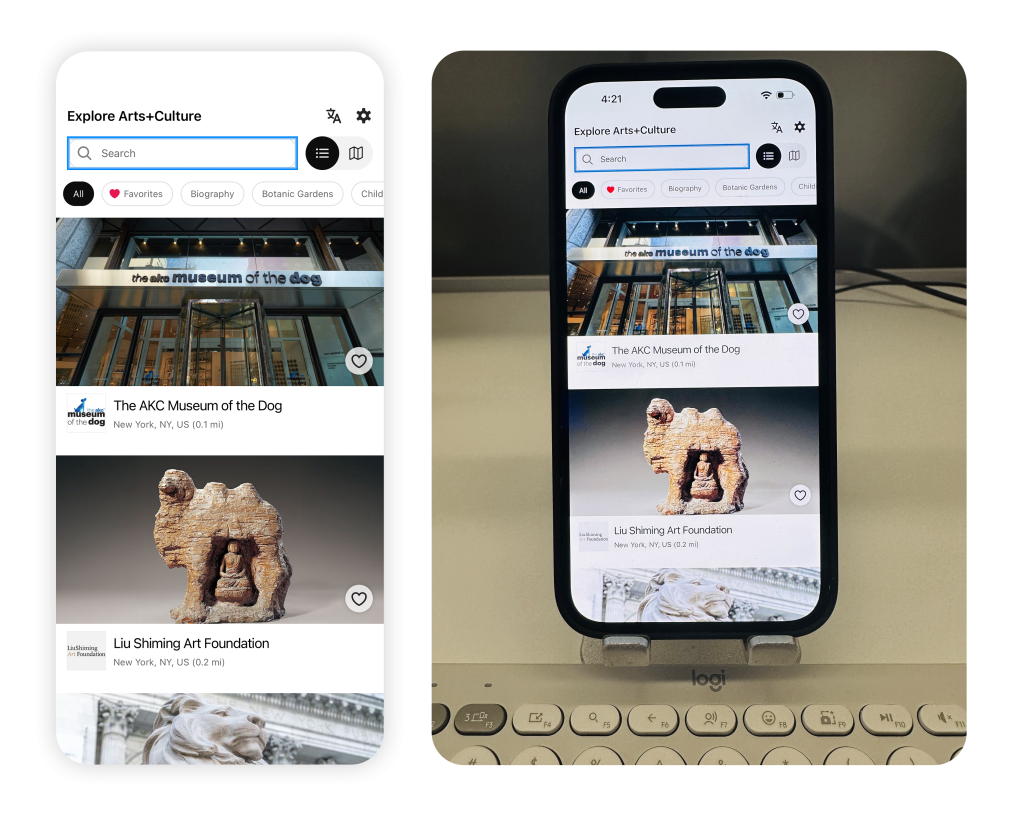
An app for all abilities
“Assistive technology” is a term for devices, software, and equipment that support people with disabilities—anything from eyeglasses to wheelchairs to text-to-voice software. Assistive technology helps level the playing field for everyone.
In Bloomberg Connects, assistive technology can take the form of device settings, tools, and external technology to which a person connects their device.
In this article, assistive technologies are grouped by the primary ability that they support or augment.
In This Article
Tip: Accessibility features support many different needs, and everyone uses them differently. You may use more than one accessibility feature depending on your preferences or situation.
Vision
Thoughtful, scalable design can make digital experiences more accessible to people with low or no vision. This section summarizes the main ways in which the Connects app can adapt to meet different visual needs.
Principle:
- Screen reader users can interact with content and features to the same extent as non-screen reader users.
- There is a clear, logical, and predictable path for assistive technology to follow, so the software can announce and activate the app’s features (this path is called the focus order).
Watch a short demonstration of using VoiceOver on an Item screen in the app:
Alt text for images
Alternative text (alt text) helps people who can’t see an image understand the purpose, context, and key visual information through words. Alt text does not appear in the app but is read aloud by a screen reader.
Principle:
- All app images are designed with different alt text needs in mind. The three types of images are functional, decorative, and informative.
- Interface icons and decorative images are supported by the app and do not require additional descriptions.
- Images provided by museums and cultural partners include alt text where available, helping screen reader users understand the purpose and content of the image.
Linear presentation of maps
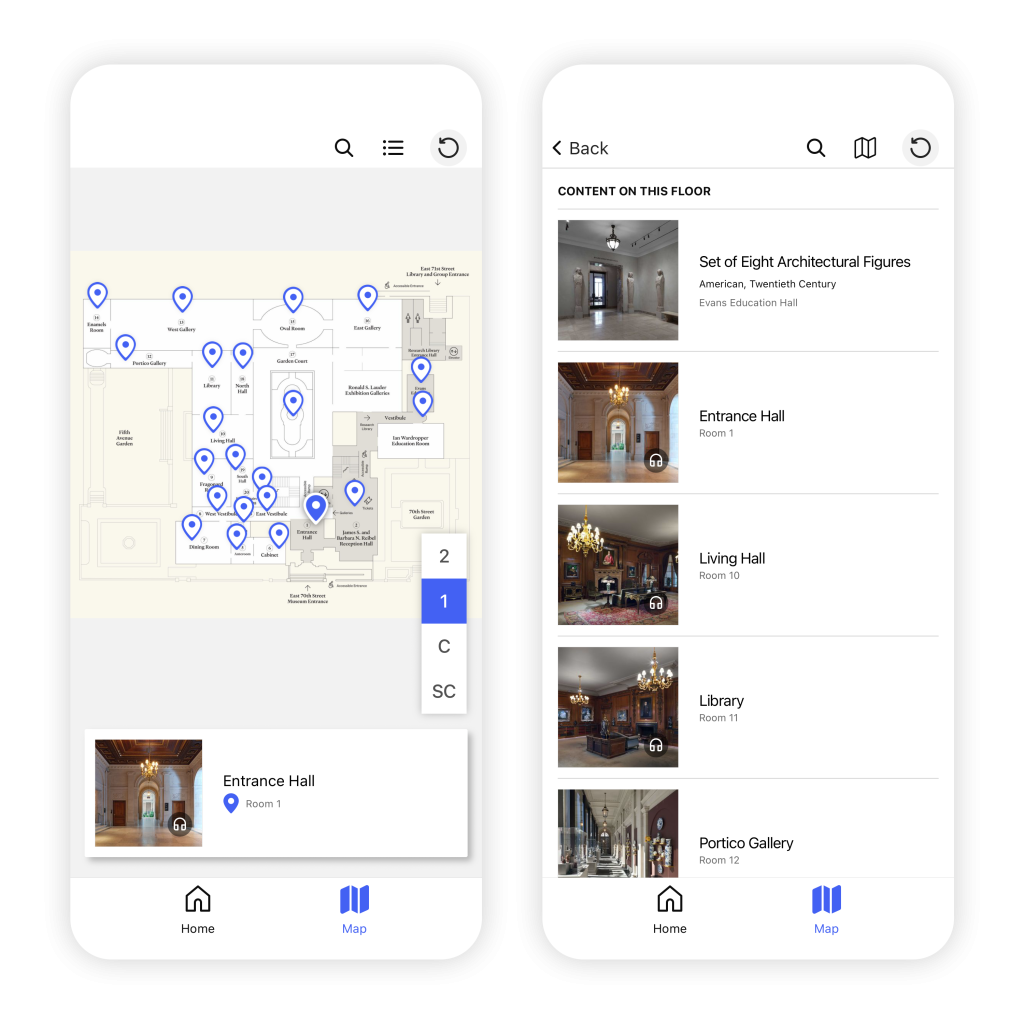
When Bloomberg Connects app detects that a screen reader is in use, maps automatically switch to a linear, text-based version.
Principle:
- A linear, text-based version of the map is easier to navigate via a screen reader.
- The map defaults to the linear map version when a screen reader is detected.
- Both versions of the map are available for all users via an icon at the top of the screen.
Text scaling
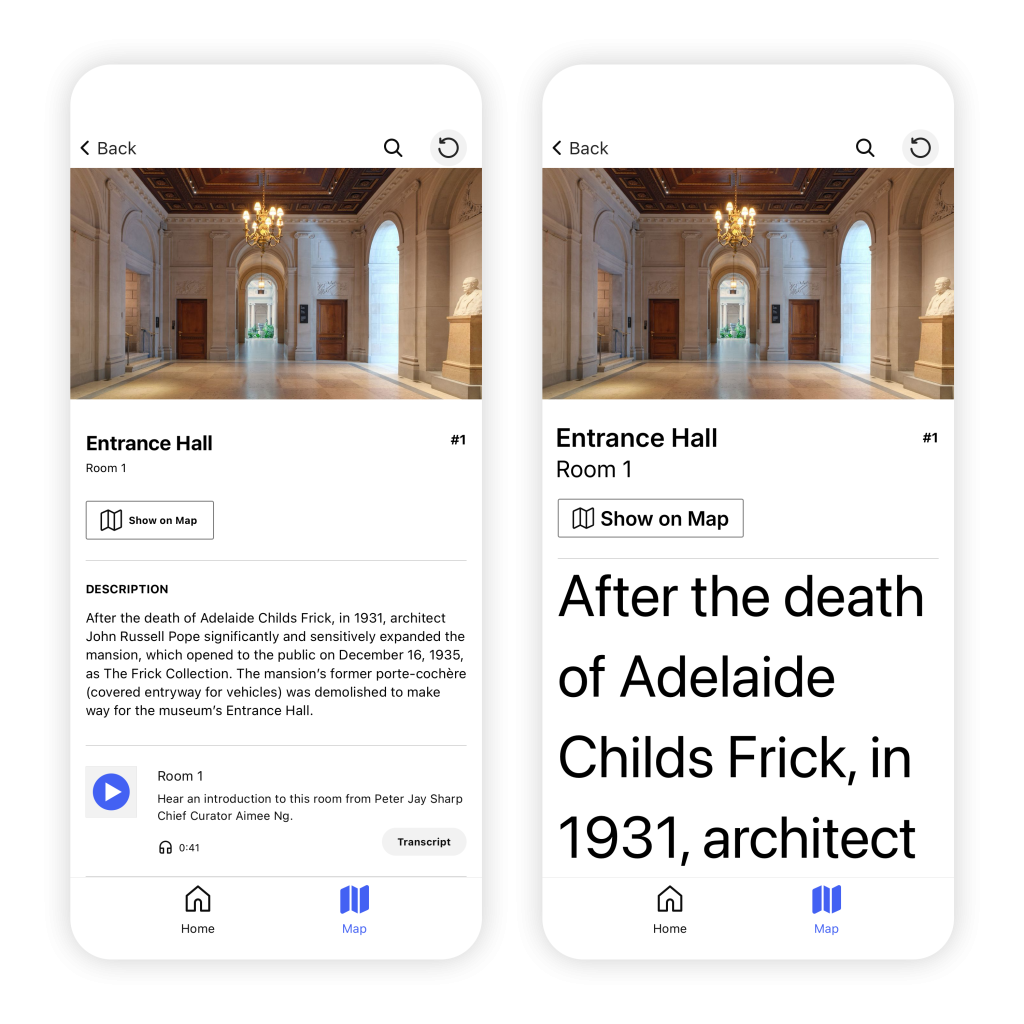
People can change the size of the text on their device to make it more comfortable to read.
Screen orientation
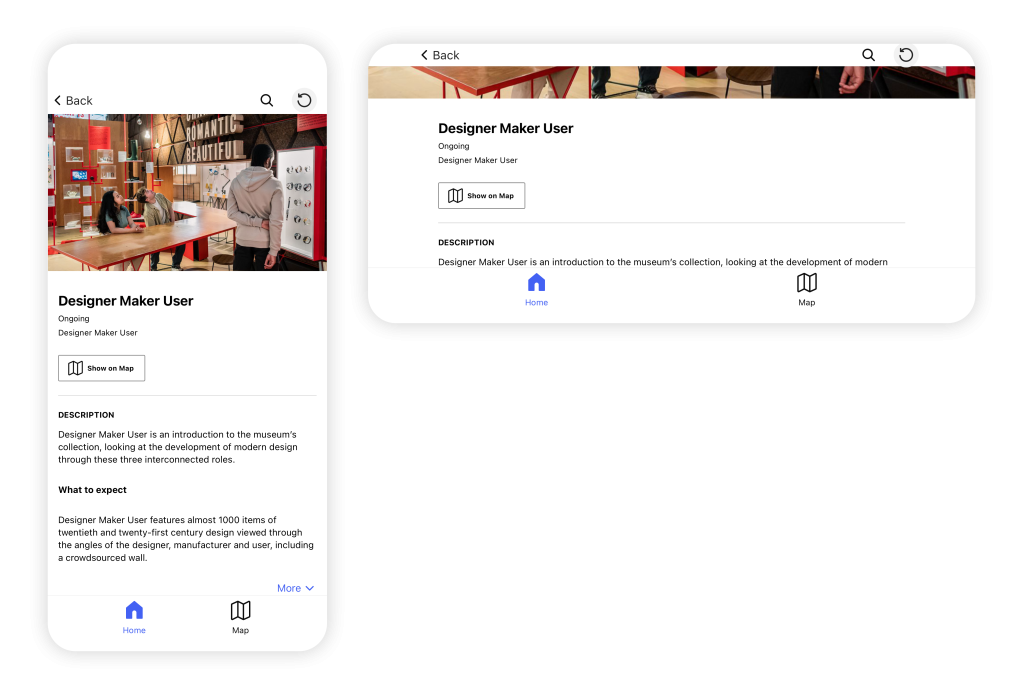
People can choose to hold their phone in portrait or landscape orientation, depending on what’s comfortable and practical for the content they’re accessing and any other relevant needs or considerations.
Principles:
- Landscape and portrait orientation are supported on every screen.
- Neither display orientation is privileged.
- Users do not need to rotate their device to match a given orientation.
Color and contrast
Sufficient color contrast makes onscreen elements as legible as possible.
Principles:
- Higher contrast between the foreground and background colors makes it easier to distinguish characters and symbols.
- Sufficient contrast between the color of text and its background color ensures legibility.
- Color is not used as the only indicator of information.
Hearing
Providing text-based alternatives to video and audio content makes them more accessible to people with a permanent, temporary, or circumstantial inability to listen to or understand audio.
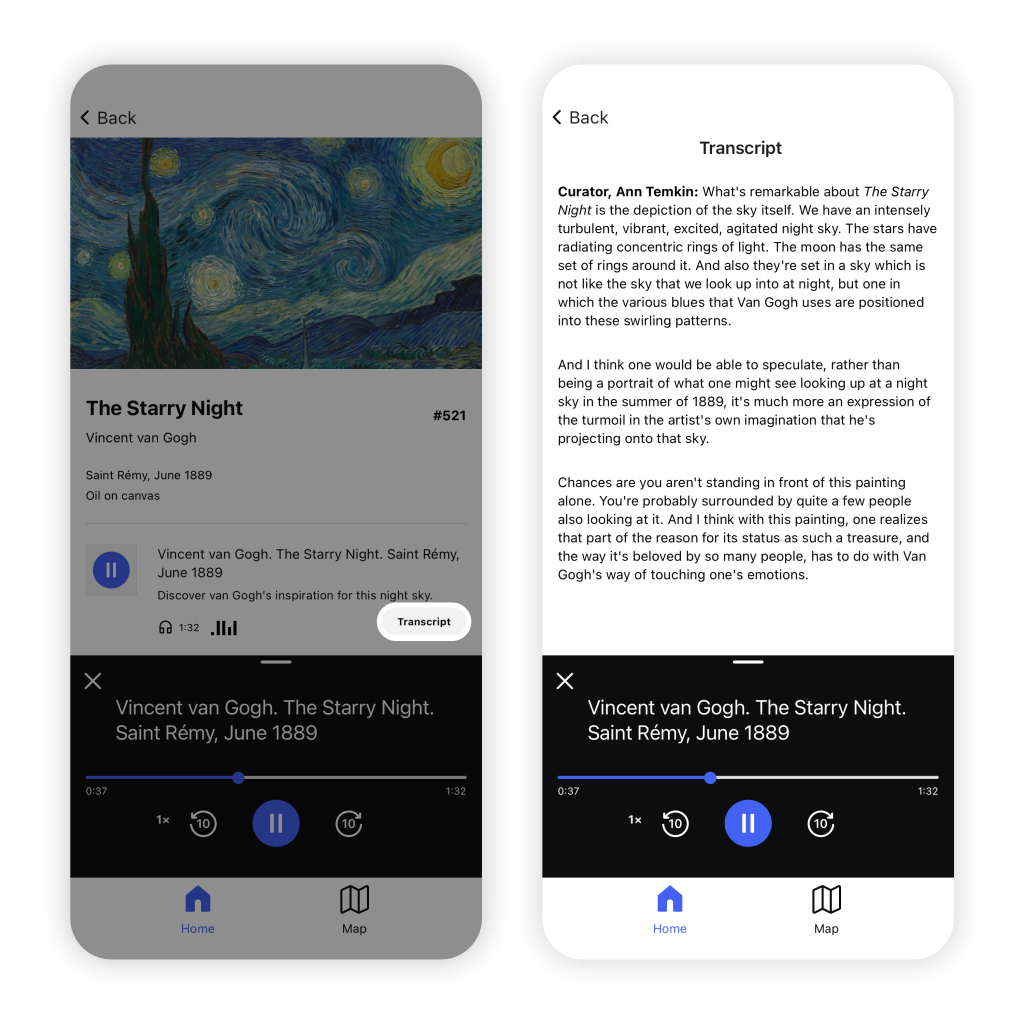
Audio and video transcripts
Transcripts make content accessible to a wider audience of people who cannot, or choose not to, listen to the audio.
Principle:
- All audio and video files support transcripts so people can read along with, or instead of listening to, the audio content.
Video captions and subtitles
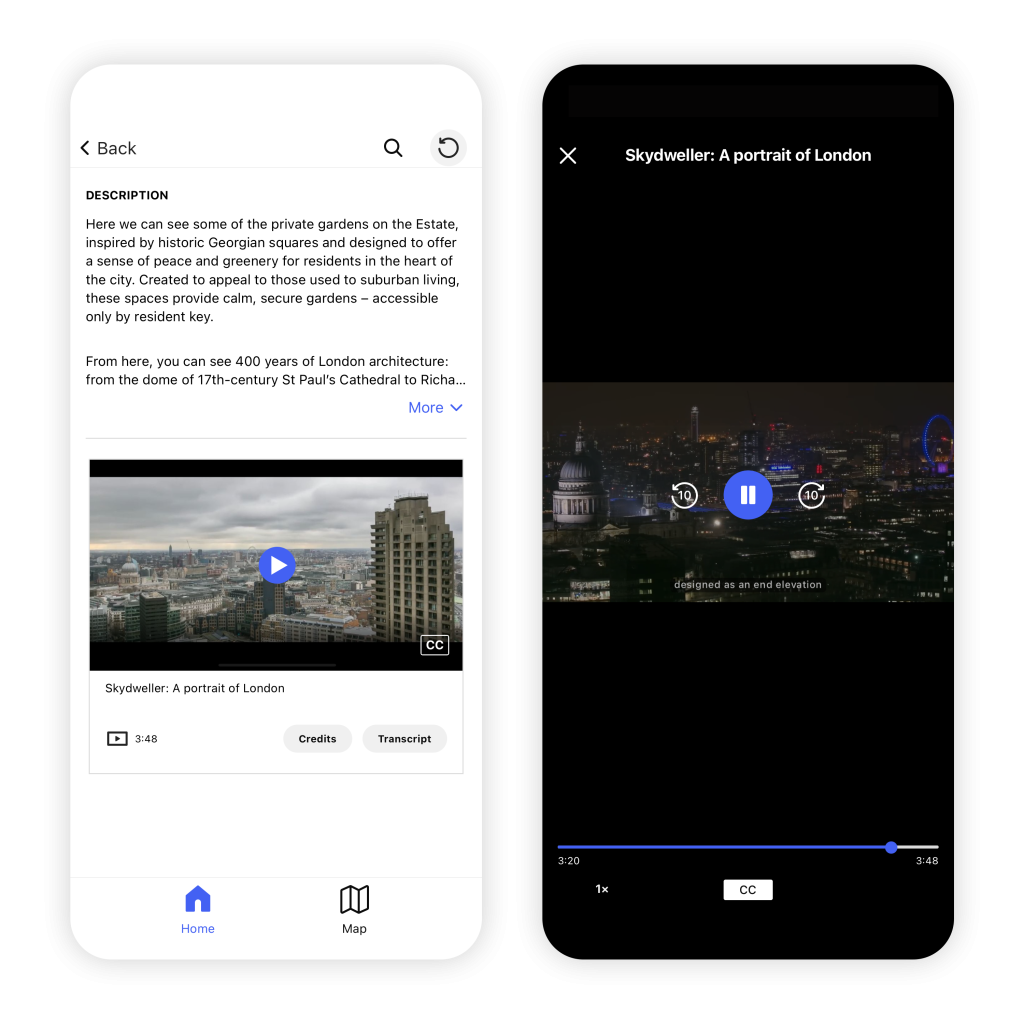
Captions and subtitles are two types of synchronized text that can be overlaid on a video to make the audio content more accessible.
Captions convey both dialogue and non-speech sounds (e.g., laughter, music, sound effects) and are intended for people who are deaf or hard of hearing. Subtitles convey only the spoken dialogue and are intended for people who can hear but are not proficient in the spoken language or people who prefer to watch a video on mute while reading the spoken dialogue.
Principles:
- All videos support real-time closed captions/subtitles via uploaded VTT files, so people can turn the captions or subtitles on as needed. Closed captions are preferred over open or “burned in” captions to allow for this flexibility.
- In a guide, the availability of captions or subtitles is indicated using the standard “CC” icon on the video player.
Motor control and dexterity
Some people do not operate mobile apps using touchscreen devices. Instead, they use an external controller such as a keyboard or switch control.
External controller
People may benefit from an external controller if they have certain motor or dexterity impairments or if they require discernible physical keys.
Principle:
- Intuitive navigation and interaction is available for people using external controllers.
- People using external controllers can interact with content and features to the same extent as touchscreen users.
- There is a clear, logical, and predictable path for assistive technology to follow, so the software can activate the app’s features (this path is called the focus order).